Commands
Define and configure your chat commands
Chat commands in Streamer.bot are platform-agnostic, supporting Twitch, YouTube and Kick.
Configuration options give you fine-grained control over command text parsing, cooldowns, and user permissions.
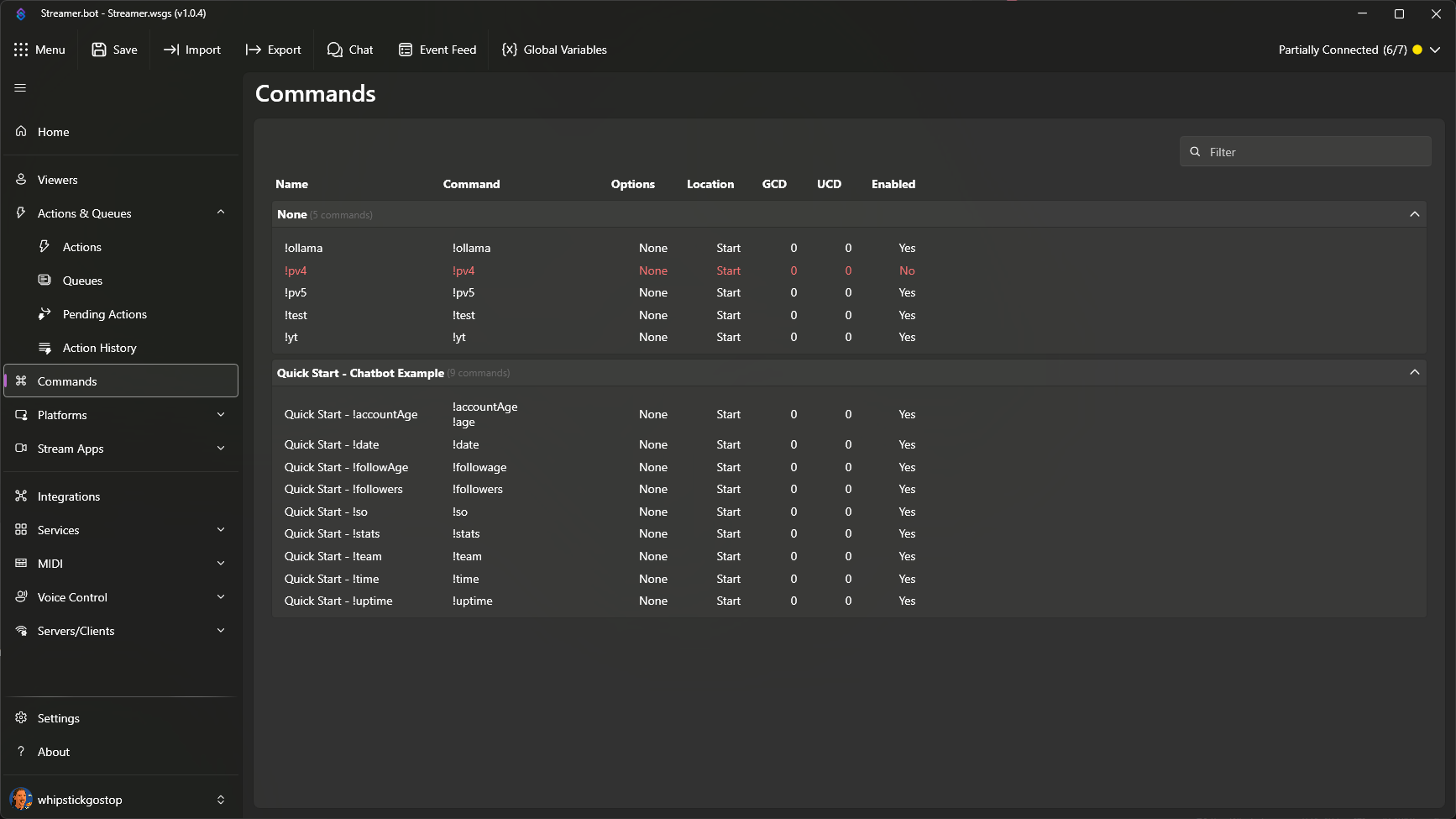
To create your first command, Right-Click in commands pane and select Add to open the configuration dialog.
Configuration
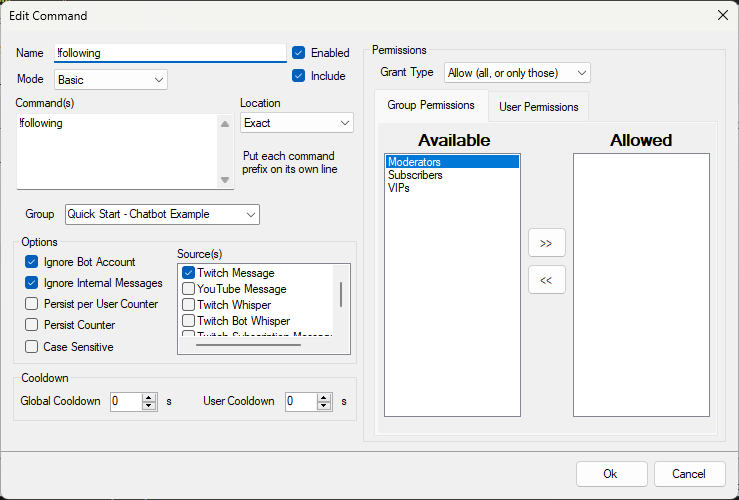
Commands field.Basic- Match at least one of the strings entered, based on the configuredLocationoptionRegex- Match based on Regular Expression
Basic mode:Start- Match chat messages that begin with at least one command aliasExact- Match chat messages that are exactly the same text as at least one command aliasAnywhere- Match chat messages that contain at least one command alias
Options
Twitch Message- Accept commands from the chat of the configured Twitch Broadcaster accountYouTube Message- Accept commands from the chat of the configured YouTube Broadcaster accountTwitch Whisper- Accept commands from whispers sent to the configured Twitch Broadcaster accountTwitch Subscription Message- Accept commands included in the Twitch sub messageTwitch Re-subscription Message- Accept commands incldued in the Twitch re-sub message
Cooldowns
To prevent spam or generally restrict usage of your command, you can configure cooldown options:
- Set to
0to disable global cooldowns
- Set to
0to disable user cooldowns
Permissions
You can restrict access to your commands by configuring permissions options:
Allow- Only the specified groups or users can execute this commandDeny- Everyone except the specified groups or users can execute this command
Allowed or Denied fields are left empty, the permission applies to everyone. - Grant type Allow, with an empty Allowed field will allow all users access - Grant type Deny with an empty Denied field will deny all users accessContext Menu
From the Commands tab, Right-Click any existing command to reveal the context menu.
Options are outlined below:
Add
Create a new command
Edit
Open the command configuration dialog.
This is the same as Double-Click the entry
Delete
Delete the selected command
Rename Group
Quickly rename the current group of the selected command
Set Group
Quickly assign the selected command to another group
Enabled
Quickly toggle this command on or off
Reset Counters
Reset stored counter data for the selected command
Reset User Counters
Reset stored user counter data for the selected command
Add to Export
Add this command to the current export
Copy Command Id
Copy the unique ID string for the selected command to your clipboard
Usage
Once you have configured your commands, you can assign them to actions with triggers!