Chat Message Timer
Send custom messages to chat on a given interval
Whipstickgostop
You can easily execute any of your actions in Streamer.bot at a given interval with Timed Actions.
In this example, we are going to create a simple timer to send a chat message every 5 minutes.
Instructions
- Create a new action
Right-Click the Actions pane in Streamer.bot and selectAddto create a new action.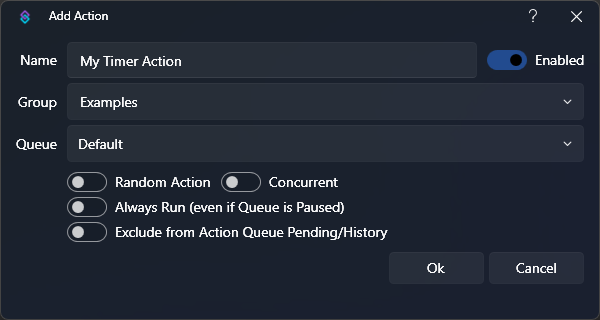 Create Action Dialog
 - Create a timer trigger
With your new action selected, Right-Click in the Triggers pane and selectCore > Timed Actionsto add a timer trigger.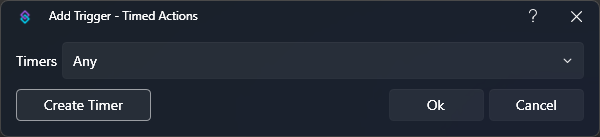 Create Trigger Dialog
Click theCreate Timerbutton to create a new timer. - Configure your timer settings
Enabledis checked- This turns the timer on or off, which can be easily changed later in
Settings > Timed Actions
- This turns the timer on or off, which can be easily changed later in
Repeatis checked- This tells the timer to repeat at the configured interval
Intervalis set to600seconds (5 minutes)
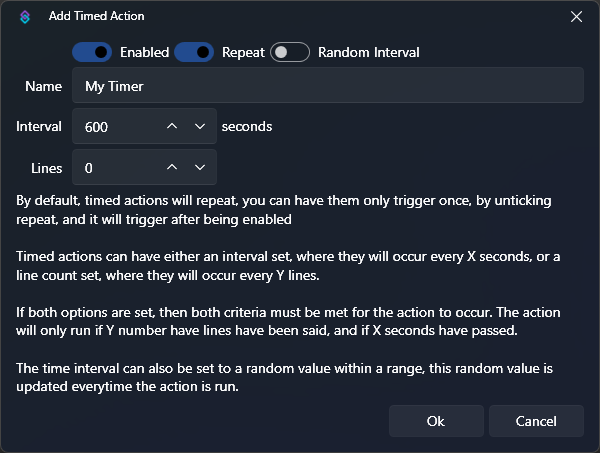 Timer Settings Dialog
ClickOkto save your timer. ClickOkagain to save your trigger with your new timer.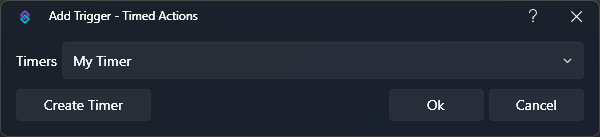 Confirm TriggerNow we have a timer executing our action every 5 minutes!
 - Make our action do something
The Send Message to Channel sub-action allows us to easily send text to our Twitch chat.Right-Click in the sub-actions pane and select Twitch > Chat > Send Message to Channel
You will then see the sub-action dialog: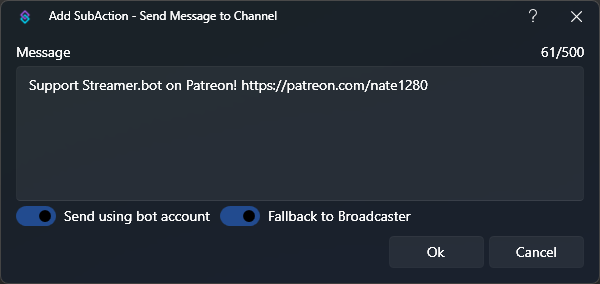 Send Message Sub-Action
- Change the
Preferred Accountif you wish to change the account to send the message from - Type your desired message content into the
Messagebox
- Change the
- Done!Your custom message will be sent to Twitch chat every 5 minutes!
 Chat message preview
Tips & Tricks
- You can view, edit, and delete all your timers by navigating to
Settings > Timed Actions - You can create dynamic messages by utilizing
%variables%in the message box