Broadcasting Software
How to connect Streamer.bot to your broadcasting software
Set up your broadcasting software to work with Streamer.bot
OBS Studio is highly recommended and provides the most functionality
OBS Studio
Configure Streamer.bot to remotely control your OBS Studio instance(s).
This guide assumes you are running OBS Studio version
28.0.0 or later- Enable OBS WebSocket ServerIn OBS Studio, navigate to Tools > WebSocket Server Settings from the menu bar
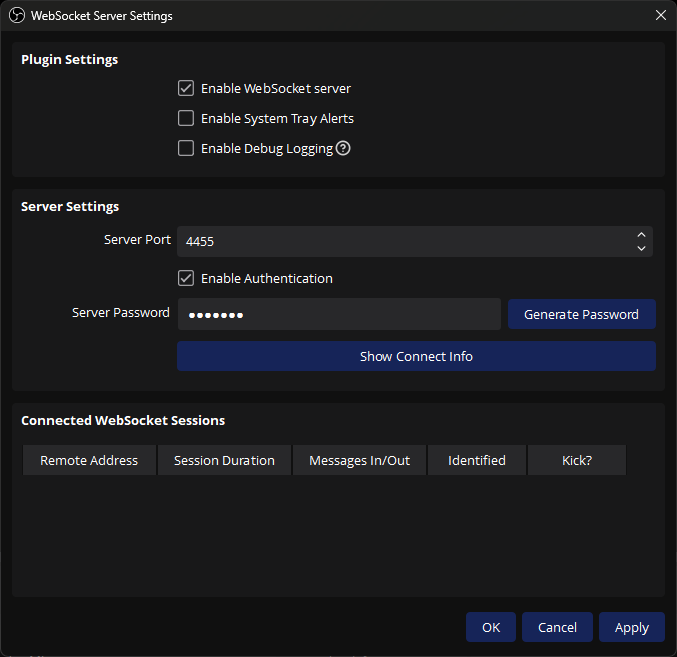 OBS Studio WebSocket SettingsIf you don't see the WebSocket settings, and you have verified you are on version
28.0.0or later, navigate to Help > Verify Files from the menu bar.- Ensure the
Enable WebSocket serversetting is enabled (checked) - Change the
Server Settingsas desired- You will enter these values in Streamer.bot in the next steps
- Ensure the
- Set up your OBS Studio connection in Streamer.botNavigate to Stream Apps > OBS
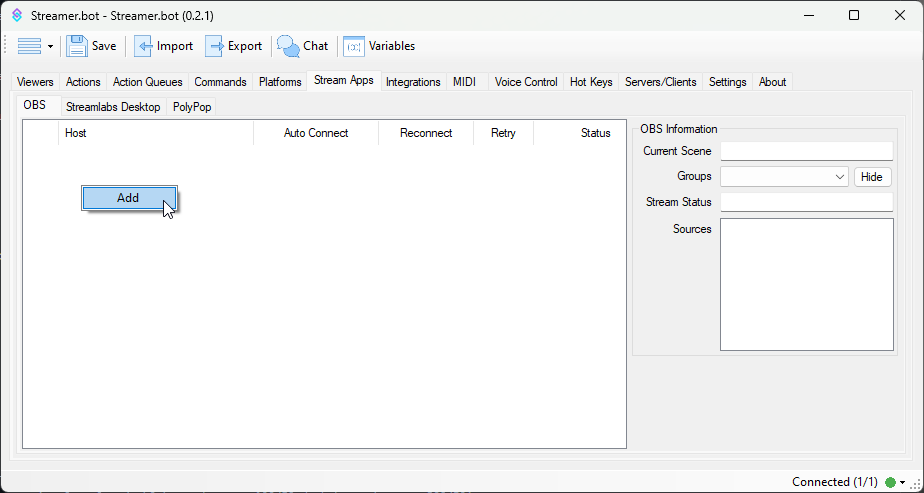 OBS Studio Configuration
To add a new connection, Right-Click anywhere in the panel area and selectAdd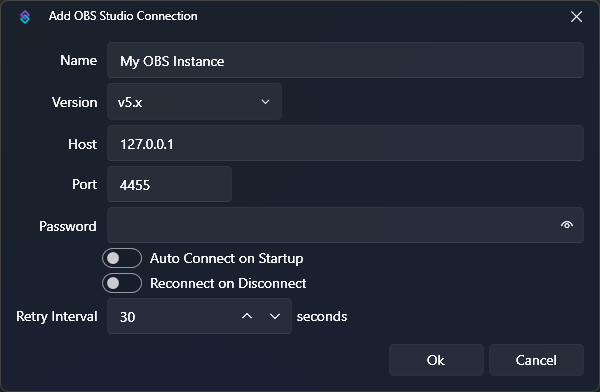 OBS Studio Add Connection
- Enter a name for this OBS connection
- Select version
v5.x - If OBS Studio is running on the same machine, keep
127.0.0.1for theHostfield- For multi-pc setups you can configure this with another LAN IP address
- Configure
PortandPasswordto match theWebSocket Server Settingssetup in OBS Studio - Click
OKwhen you have finished configuration - Right-Click the new instance and select
Connectto force an immediate connection attempt
If you are having trouble connecting, double-check the Host, Port, Password, and Version to ensure it matches your OBS Studio instance.Explore the full OBS Studio Configuration Guide to learn more about all available options.
Streamlabs Desktop
Set up Streamer.bot to remotely control your Streamlabs Desktop instance
- Get Streamlabs API Settings
Obtain your API Token and Port from your Streamlabs Desktop settings.Navigate to Settings > Remote Control in Streamlabs Desktop
undefined
Save these settings for the next steps. - Add Streamlabs Desktop connection to Streamer.botNavigate to Stream Apps > Streamlabs Desktop
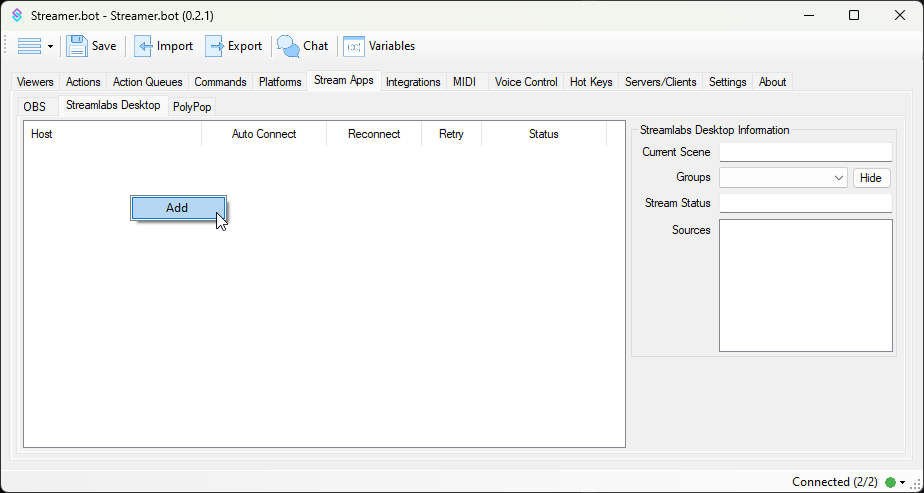 Streamlabs Desktop Configuration
To add a new connection, Right-Click anywhere in the panel area and selectAddExplore the full Streamlabs Desktop Configuration Guide to learn more about all available options.
Meld Studio
Set up Streamer.bot to remotely control your Meld Studio instance
- Enable Remote ConnectionsIn Meld Studio, navigate to File > Preferences > Advanced in Meld Studio
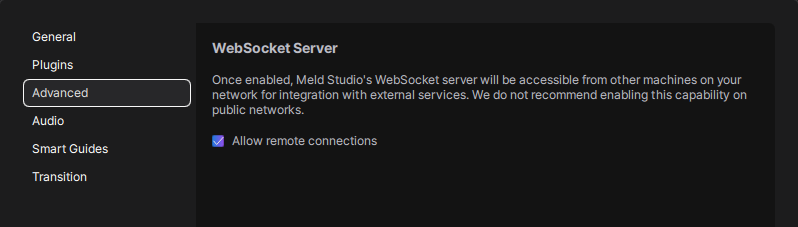 Meld Studio Advanced Settings
- Ensure the
Allow remote connectionsis enabled (checked)
- Ensure the
- Setup your Meld Studio connection in Streamer.botNavigate to Stream Apps > Meld Studio
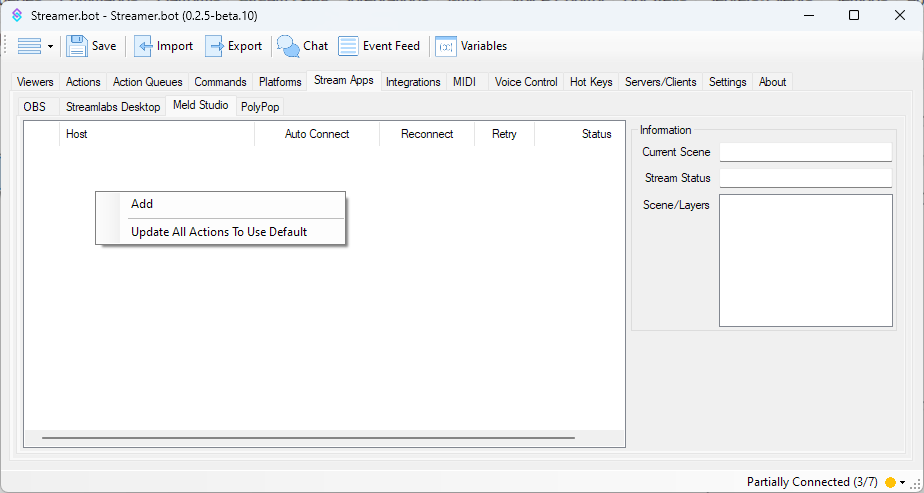 Meld Studio Configuration
To add a new connection, Right-Click anywhere in the panel area and selectAdd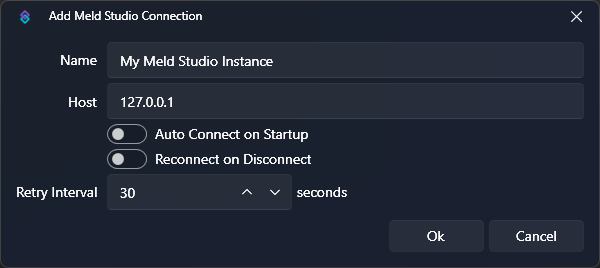 Meld Studio Add Connection
- Enter a name for this Meld Studio connection
- If Meld Studio is running on the same machine, keep
127.0.0.1for theHostfield- For multi-pc setups you can configure this with another LAN IP address
- Click
OKwhen you have finished configuration - Right-Click the new instance and select
Connectto force an immediate connection attempt