Switch Subaction
How does a Switch subaction work?
A Core -> Logic -> Switch subaction takes an input (such as a variable) and compares it against multiple cases. If the input matches one of the cases, the subactions inside that case will run. It works similarly to an If/Else subaction, but instead of being limited to just True or False, it allows for many different options.
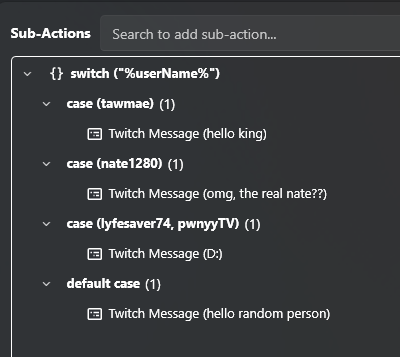
In this example, we use %userName% as the input, with individual usernames defined as cases.
To add a new case, right-click the subaction and select Add Case. Enter the desired value, then click Add and OK when you’re finished. You can include multiple values within a single case, or just keep one — it’s up to you. Add as many cases as you need.
Next, add the subactions to each case. In our example, we use Send Message subactions to give specific users a personalized welcome message.
The Default case acts as a catch-all: if none of the cases above it match, the default case will be used instead.
Note: If you are using numbers, make sure to check Auto Type