Switch
Allows for multi-way branching based on the value of an expression
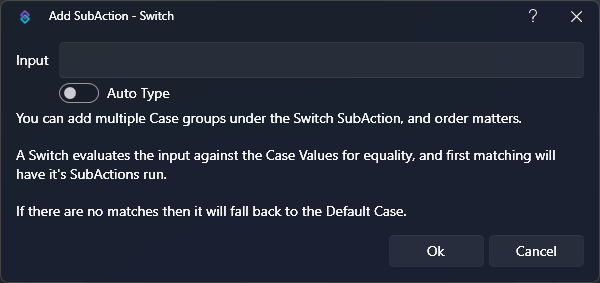
Switch Dialog
You can add any number of cases to a switch by right clicking on the switch Sub-Action and selecting "Add Case"
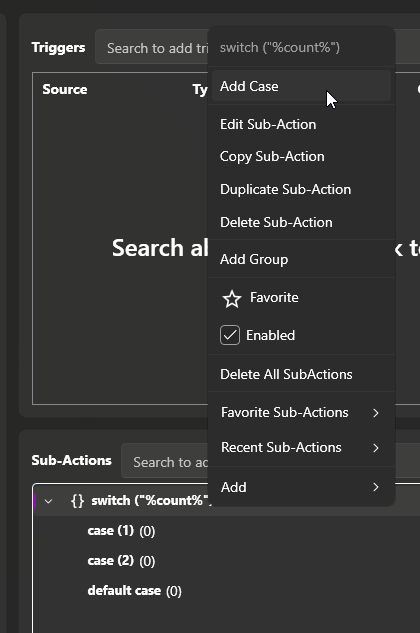
Switch context menu showing "Add Case" option
You can add one or more values to a case. If any of the case's values match the switch input, that case will be executed.
For example, in the image below, if the %count% value is 1, the first case will be executed.
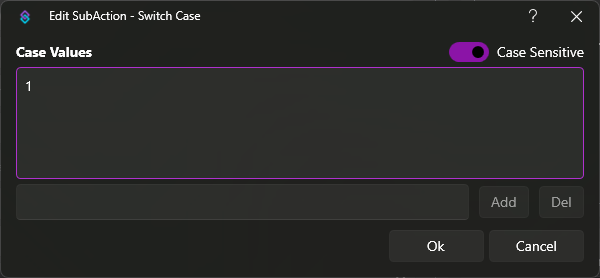
Add Case Dialogue
Only the first matching case will be executed.
- If no cases match, the
defaultcase will be executed.
Parameters
Input
Text required
Enter the value for the left hand side of the comparison, this input supports full variable parsing and inline functions
Auto Type
Toggle
Default:
falseBy default, values which have not already been typed are treated as text, or string variables.
Enable Auto Type to automatically determine the type for the variable value.
For example:
0can be auto-typed to a numeric type such asintorlongtrueorfalsecan be auto-typed to abool